How to Play with the Mod & In-Game Features
Once the mod is installed and configured, it seamlessly integrates portraits, visual illustrations, and interaction controls directly into your game's interface.
This guide explains all the core gameplay features, lightbox controls, portrait locking, custom image uploads, and how the mod adapts to both Course of Temptation and Shady Deals.
Universal Features (Available in All Games)
Regardless of which game you are playing, the mod provides a consistent set of powerful tools:
1. Generation Modes: Automatic vs. Initial Only vs. Manual vs. Disabled
Inside the mod's Settings Modal (⚙️) > General Settings, you can choose how each visual domain behaves:
- Automatic Mode: The mod monitors game state changes. Whenever an outfit changes, you move to a new room, or you encounter new characters, the mod generates or fetches the updated portrait automatically.
- Initial Only Mode: Generates a portrait automatically the first time a character or scene is encountered. Once an image exists in your cache, the mod retains and reuses it without re-generating on subsequent outfit or room transitions. You can still manually click the hover refresh button (
🔄) at any time if you want an updated picture. This mode is ideal if you want every character illustrated without burning excess GPU cycles, Perchance queues, or paid API credits on every location change. - Manual Mode (Recommended for Beginners): A small refresh icon (
🔄) is placed on portraits or cards. Images only generate when you explicitly click the button, giving you 100% control over when your GPU or API is used. - Disabled Mode: Completely deactivates and hides that visual element, keeping the original game interface clean.
Initial Only vs. Manual Mode
If automatic generation triggers too many requests on location changes (e.g. encountering 10+ NPCs at once) but clicking every single new character manually feels too tedious, set your NPC or event domains to Initial Only!
2. The Fullscreen Portrait Lightbox
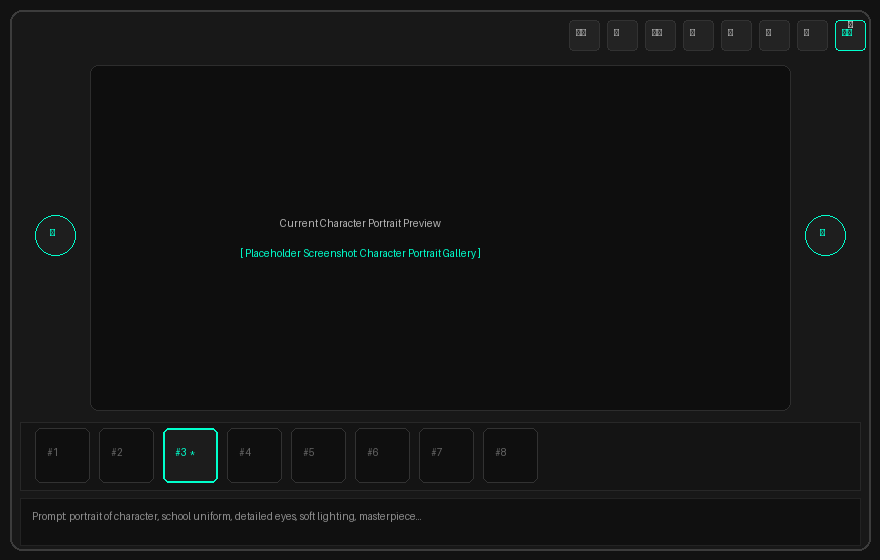
Clicking on any portrait or illustration in either game opens the Fullscreen Portrait Lightbox:

In the top-right corner of the lightbox, you will find quick action buttons to manage, inspect, and browse images:
Character Portrait Gallery (🖼️)
Want to look back at earlier outfits, hairstyles, expressions, or previous generations for a character? The built-in Character Portrait Gallery lets you browse and preview all portraits saved for that character during your current playthrough session!
Locking Portraits (🔓 / 🔒)
Did you get an amazing portrait that you want to keep forever? Lock it!
- How to use: Click the unlock icon (
🔓) in the lightbox header. It will switch to a highlighted lock icon (🔒). - What locking does:
- Prevents automatic overwrites: The mod will never replace or regenerate a locked portrait, even if the character changes clothes, changes rooms, or you travel across the game world.
- Disables the outdated filter: Locked portraits never dim or get marked as outdated.
- Disables accidental refreshes: The manual refresh button is locked to prevent unintended regenerations.
- Unlocking: Click
🔒again at any time to restore normal dynamic updates.
Importing Custom Images (📁)
Don't want to use AI generation for a specific character, or have custom artwork you prefer? You can replace any portrait with your own image file!
- Click the character portrait to open the lightbox.
- Click the Import folder icon (
📁) in the top right. - Select an image file (
.png,.jpg, or.webp) from your computer. - The mod instantly saves your custom image into local browser storage and automatically locks it so it won't be replaced.
- The original image filename is saved and displayed in the lightbox for your reference.
Dynamic Prompting with External Tools
If you want to use external tools (like Midjourney, DALL-E, Fooocus, or external WebUIs) on the fly while letting the mod dynamically write your character and scene prompts, use the External Tool Hand-off Generator. It provides in-game prompt copying and quick Ctrl+V hover-pasting!
Custom Character Keywords (🏷️)
Want a specific character to always have a specific hair color, distinctive clothing, or a specific LoRA?
- Click the portrait to open the lightbox.
- Click the Tag icon (
🏷️) to open the character keyword dialog. - Enter your custom tags or prompt modifiers. Examples:
- Appearance traits:
emerald green eyes, silver hair, ponytail, cute smile - Custom LoRA (for Local SD/ComfyUI):
<lora:character_lora_name:0.8>, masterpiece
- Appearance traits:
- Click Save. The mod automatically appends these tags whenever generating prompts for that character!
Copying Prompts (📋)
Click the copy icon (📋) to copy the exact text prompt used to generate the currently displayed portrait directly to your clipboard.
Direct Image Download (💾)
Click the save icon (💾) to download the high-resolution portrait file to your device. Downloaded filenames automatically include the character identifier and an exact timestamp (e.g. PC_2026-10-27_17-45-00.webp).
Deleting an Image (🗑️)
Click the trash icon (🗑️) to remove the currently viewed portrait from your local storage and reset the portrait slot. (Locked portraits cannot be deleted until unlocked first).
3. Image Archive Export (.zip)
You can back up or browse every image the mod has ever generated or imported on your computer!
- Open the Settings modal (
⚙️) and go to the Import / Export tab. - Click Export Generated Images (.zip).
- The mod packages all cached images into an organized
.zipfile archive sorted into folders (player/,NPCs/[Name]/,events/,clothes/). - You can also toggle the option to include a
.txtfile containing the exact positive and negative prompt alongside each exported image!
4. Deterministic Seeds (Reproducible Generation)
By default, the mod produces fresh variations for every prompt and image request. If you want identical, reproducible outputs across runs or want to freeze a character's aesthetic, you can configure Deterministic Seeds in Settings (⚙️) > General Settings > Deterministic Seeds (Optional).
| Setting | Default | Description | Supported Backends |
|---|---|---|---|
| Frozen Text Prompt Seed | Empty (-1) |
Fixes the random seed used when Large Language Models compose scene prompts. | OpenRouter (LLM), OpenAI-Compatible (LM Studio, Ollama, vLLM, etc.) |
| Frozen Image Generation Seed | Empty (-1) |
Fixes the random seed used when image models generate illustrations. | Local SD WebUI (Forge / A1111), NovelAI, Perchance AI |
How It Works:
- Unconstrained / Randomized (Default): Leaving fields empty or set to
-1generates unique prompts and randomized image seeds every time. - Frozen / Deterministic: Entering any non-negative integer (e.g.
42,123456) forces that exact seed for all subsequent requests.
Backend Compatibility & The Doctor
Not all generation engines support manual seed control:
- ComfyUI: Seed control is wired directly into your ComfyUI workflow graph (
KSamplernode) rather than via API parameters. - OpenRouter Images: OpenRouter's
/api/v1/imagesendpoint does not support seed parameters. - Basic Prompt Generator: The built-in rule-based generator produces deterministic tag templates based on game state, so text seeds have no effect.
If you configure a seed for an unsupported generator, The Doctor (⚙️ > The Doctor) will display an advisory warning or info notice to guide you.
Game Specifics: Course of Temptation
In Course of Temptation, the mod provides extensive visual coverage across 5 generation domains:
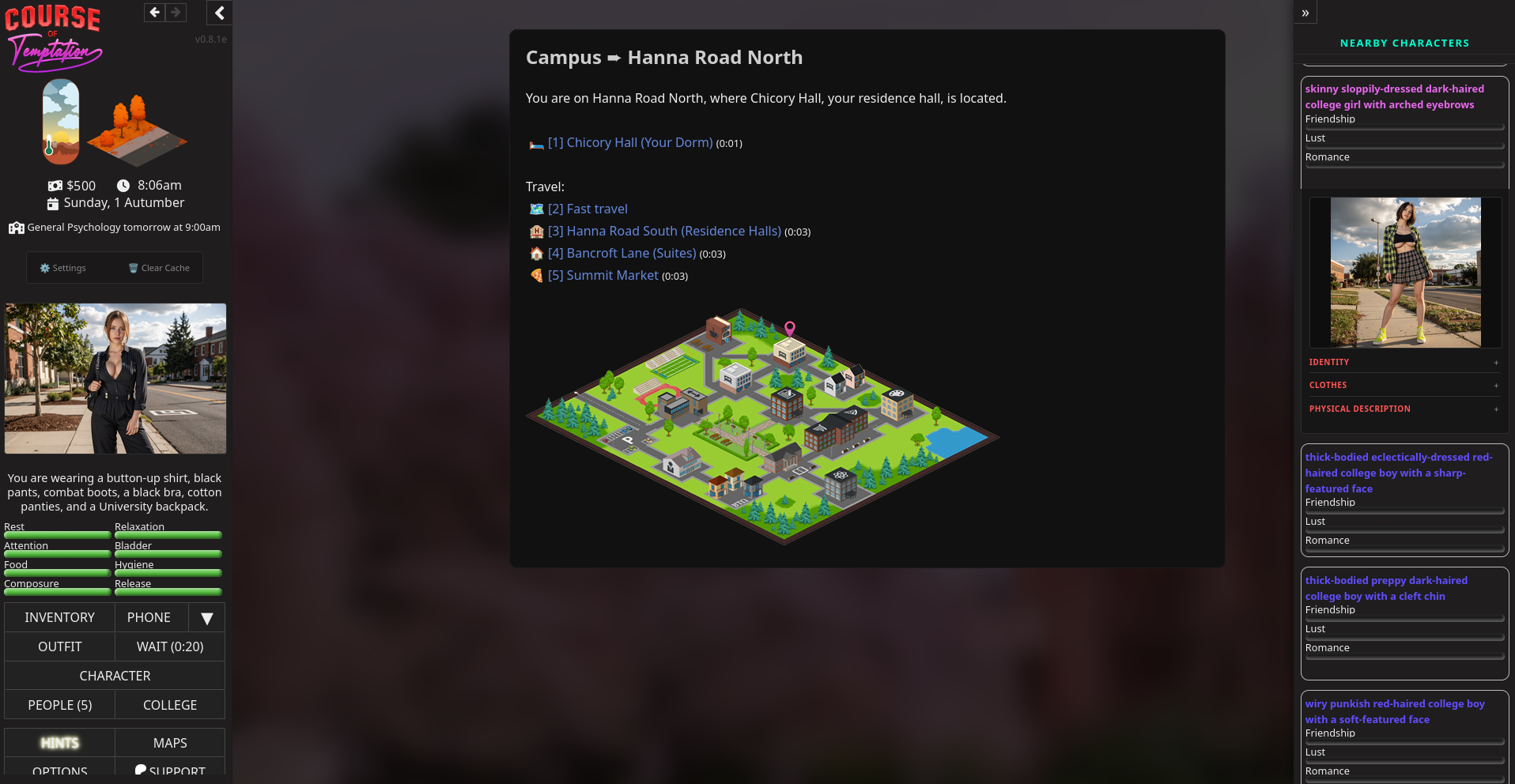
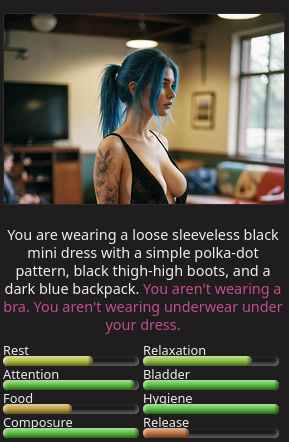
1. Player Character (PC) Portrait
- Location: Renders in the left sidebar right above your clothing description.
- Dynamic Triggers: Updates whenever your outfit changes or when you move to rooms with unique backgrounds (e.g. your bedroom, classroom, gym, shower).
- Outdated Filter: If an outfit changes and generation is set to manual, the old portrait subtly dims to notify you that the visual represents a previous outfit until you click
🔄.
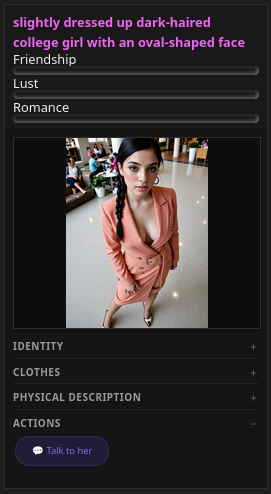
2. Nearby NPC Sidebar & Action Cards
- Location: Renders in the right slide-out panel (
#mod-ui-bar-right). - Features: Displays visual portrait cards for all NPCs currently present in your location. Cards show the character's name, relationship color, status indicators, and quick interaction buttons (Talk, Text).
- Expandable Details: In Settings, you can choose whether NPC cards start expanded or collapsed.
3. Story Events & Passage Illustrations
- Location: Rendered within or directly above story passages during key encounters or random events.
- Context: Event prompts intelligently incorporate the active characters, their current attire, time of day, and ambient weather into the generated scene.
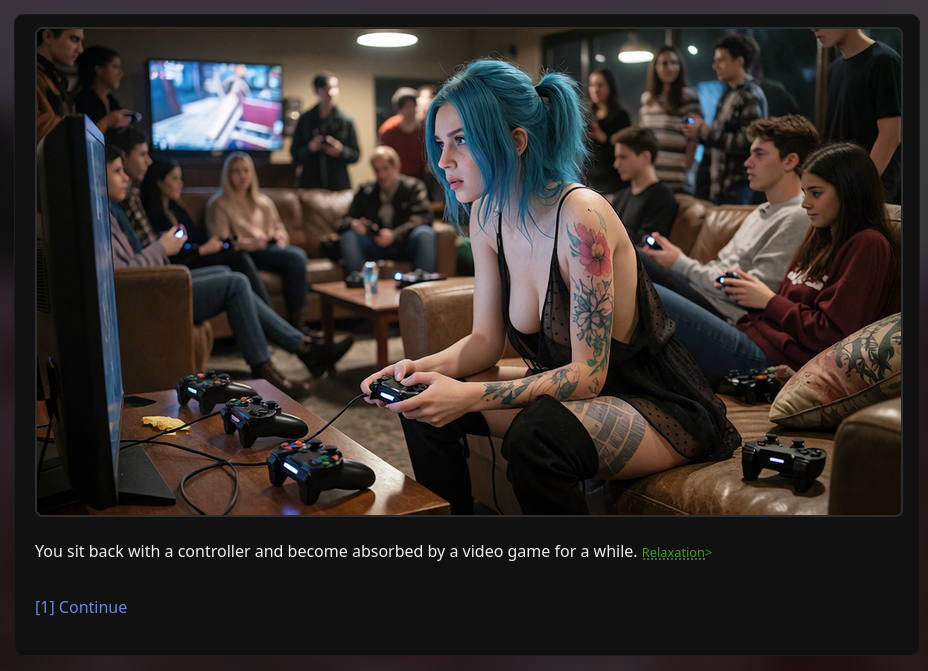
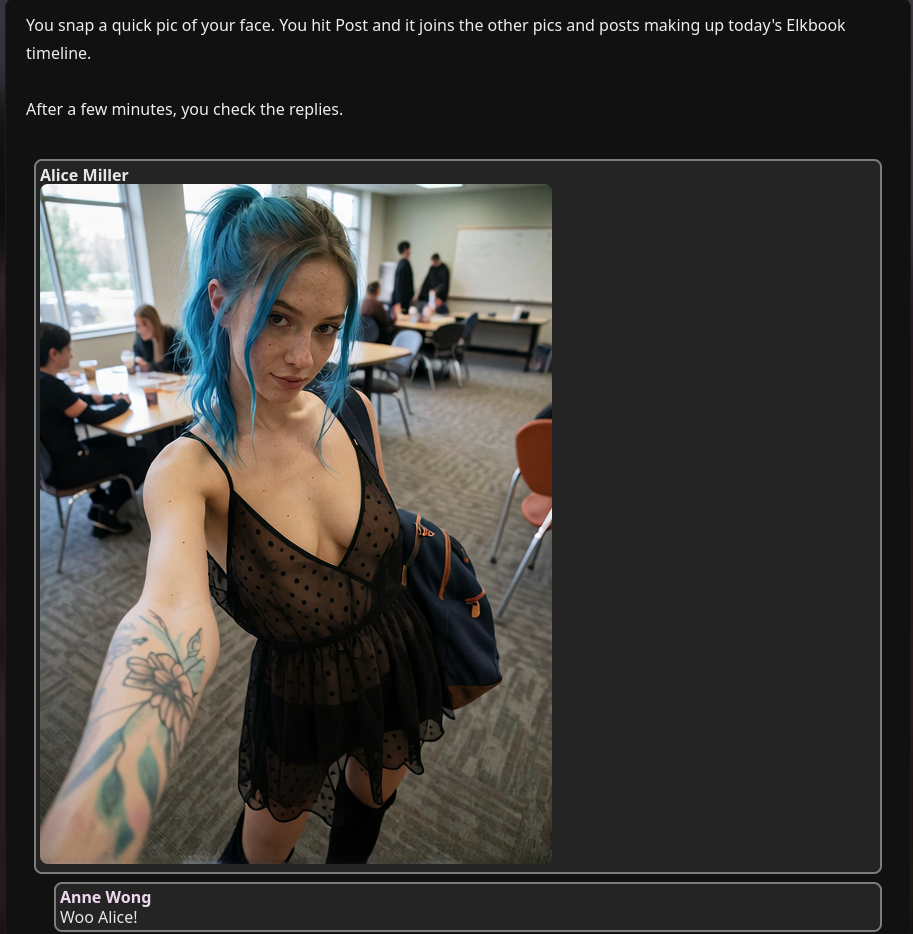
4. Phone Messages & Elkbook Social Posts
- Location: Visual selfies and photo attachments sent in text conversations or posted on Elkbook are illustrated dynamically.
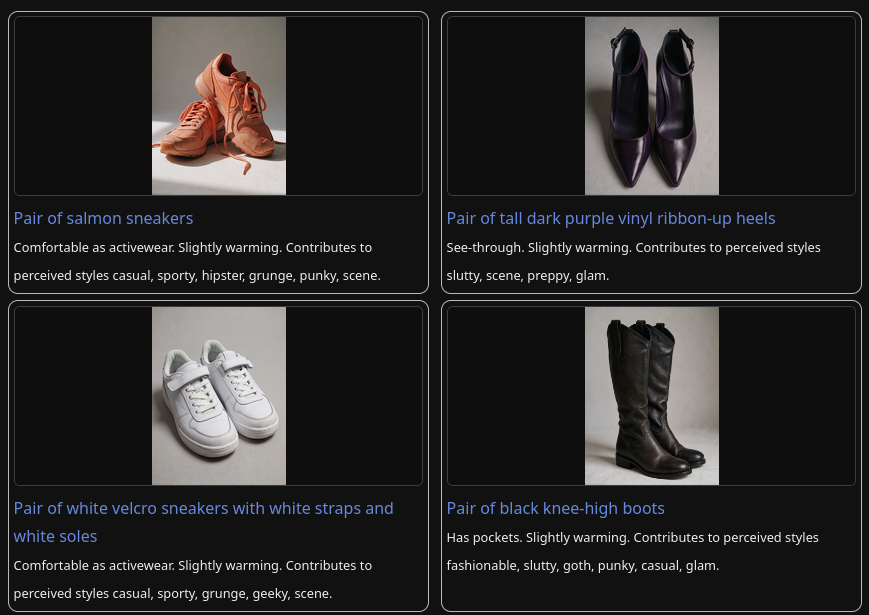
5. Wardrobe & Clothing Shop Previews
- Location: Browsing clothing stores or inspecting your personal wardrobe displays illustrated previews of individual clothing items and complete outfits.
For complete details on Course of Temptation options, see the Course of Temptation Deep Dive.
Game Specifics: Shady Deals
In Shady Deals, the mod enhances the game by replacing static NPC cards and photos with contextual AI portraits:
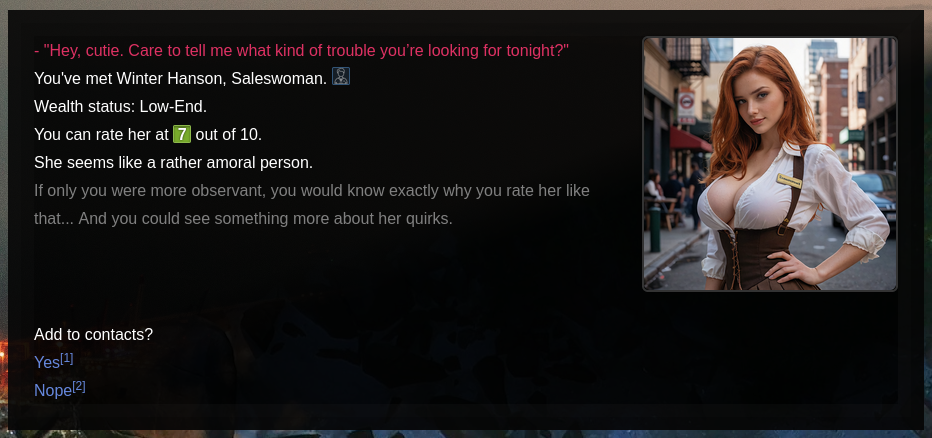
1. Dynamic NPC Photo Replacement
- How it works: The mod detects static NPC photo cards and dialogue avatars throughout the story and replaces them with generated AI portraits.
- Archetypes & Personality: Prompts are dynamically assembled by inspecting character metadata, dialogue tone, visual archetypes, and physical traits.
2. Manual Trigger Support
- When in Manual Mode, static photos remain intact with an unobtrusive
🔄button overlay. Clicking the button initiates generation for that character on demand.
3. Character Consistency
- Because Shady Deals features a vibrant roster of recurring characters, combining Portrait Locking (
🔒), Custom Keywords (🏷️), or Custom Image Uploads (📁) ensures characters retain a consistent, tailored look throughout your playthrough.
For complete details on Shady Deals options, see the Shady Deals Deep Dive.