FAQ & Troubleshooting Guide
This guide covers common issues, error messages, and troubleshooting solutions when using the AI Portrait Mod with Course of Temptation or Shady Deals.
Step 1: Run "The Doctor" (In-Game Diagnostics)
The fastest way to troubleshoot connectivity or configuration issues is to use the mod's built-in diagnostic suite:
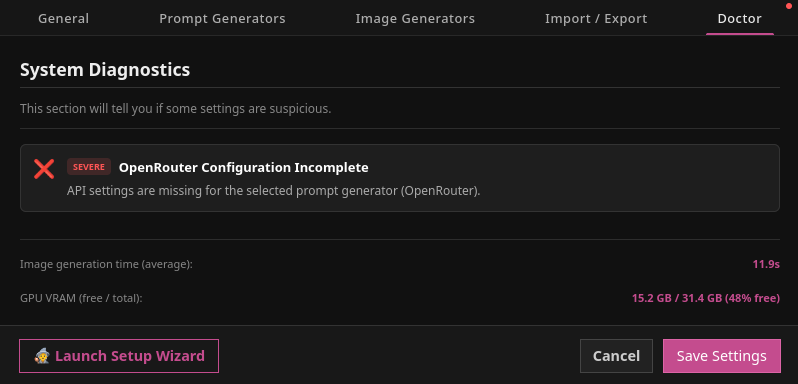
- In either game, click the gear icon (
⚙️) to open the Settings Modal. - Click on The Doctor (Diagnostics) tab.
- Click Run Tests.
The Doctor will perform live health checks on:
- Image Generator Endpoint: Checks if your image server is reachable, verifies CORS headers, reports latency in milliseconds, and lists available models.
- Prompt Generator Endpoint: If using OpenRouter or a local LLM, tests prompt crafting authentication and token limits.
- Deterministic Seed Compatibility: Verifies whether any configured frozen seeds are supported by your active prompt and image generators.
- Error Diagnosis: If a test fails, The Doctor highlights the exact error code and provides tailored steps to fix it.
Most Common Issues & Solutions
1. "Instead of portraits, I see colored silhouettes"
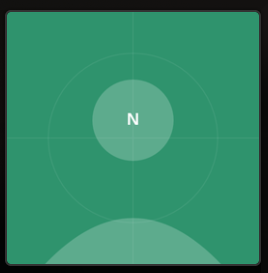
When you see a colored silhouette placeholder, it means the mod attempted to generate an image, but the request failed.
Follow this checklist to resolve the issue:
A. Is your generator server running?
- Perchance AI: Ensure the terminal running
run_perchance_server.bat(Windows) orrun_perchance_server.sh(Linux/Mac) is open in the background. - Local SD (WebUI Forge / A1111): Ensure your WebUI console is running and finished loading your checkpoint model.
- ComfyUI: Ensure your ComfyUI terminal is running.
- Local LLM (LM Studio / Ollama): Ensure the local server is started.
B. Did you enable CORS (Cross-Origin Resource Sharing)?
Because SugarCube games run inside a web browser, browser security policies strictly block the game from connecting to your local server unless CORS is explicitly enabled:
- Stable Diffusion WebUI Forge / A1111: You MUST include
--api --cors-allow-origins=*in your startup arguments (inwebui-user.bat,webui-user.sh, or Stability Matrix package settings). - ComfyUI: You MUST launch with
--enable-cors-header(e.g.python main.py --enable-cors-header). - LM Studio: In the Local Server tab, toggle Enable CORS to ON. (Note: Use the standard/regular version of LM Studio; do not use LM Studio Bionic).
C. Is the API URL and Port correct?
Check the Image Generators tab in the settings modal:
- Perchance Server:
http://127.0.0.1:7865 - Local SD WebUI:
http://127.0.0.1:7860 - ComfyUI:
http://127.0.0.1:8188 - LM Studio (Local LLM):
http://localhost:1234 - Ollama (Local LLM):
http://localhost:11434
These are default URLs
These URLs are given as an indication but they might be different if you changed them in the settings modal.
D. Check your API Keys & Balance
- If using NovelAI, verify that your API token (starts with
pst-) is entered correctly and that your account has active Anlas credits. - If using OpenRouter, verify that your API key is valid and your credit balance is above zero.
2. "Generating images takes too long or lags the game"
- Switch from Automatic to Manual Mode:
- Under General Settings, set generation domains to Manual. This adds a refresh button (
🔄) to portraits so they only generate when you choose, preventing constant background processing while you read story passages.
- Under General Settings, set generation domains to Manual. This adds a refresh button (
- Reduce Sampling Steps:
- In the Image Generators tab, reduce sampling steps. Standard SDXL models work great at
20–25steps. Turbo or LCM models work great at4–8steps.
- In the Image Generators tab, reduce sampling steps. Standard SDXL models work great at
- Disable Heavy Context Options (in Course of Temptation):
- Turning off Room Location / Background reduces the number of times new images are queued when moving between rooms.
- Lock Favorite Portraits:
- Lock portraits (
🔒) in the lightbox. Locked portraits are cached permanently and will never trigger background regenerations.
- Lock portraits (
3. "Portraits look distorted or have incorrect anatomy"
Image aesthetics depend on matching your Image Style Preset to your Checkpoint Model:
- Pony Quality Tags: If you are using a Pony-based model checkpoint (e.g. Pony Diffusion V6), enable Pony Quality Tags in the Prompt Generators tab. If you are using a standard SD 1.5, SDXL, or realistic model, make sure this setting is Disabled.
- Style Preset Mismatch: If using an anime checkpoint model, select the Anime (2D) or Realistic Anime (2.5D) style preset. Selecting Realistic Photo with an anime model will confuse the generator and cause visual artifacts.
- Using Style LoRAs or Heavily Styled Models: If using a dedicated style LoRA or a heavily stylized model, select the No Style preset. This stops the mod from injecting conflicting aesthetic tags (such as photorealistic or anime illustration), giving your model or LoRA full visual control.
- Use Character Keywords: If a character's face or hairstyle is inconsistent, open the lightbox, click the Tag icon (
🏷️), and add specific visual keywords (e.g.blonde bob haircut, blue eyes, athletic build).
4. "How do I check error logs in the Browser Developer Console?"
If an error occurs that isn't explained by The Doctor, you can inspect the browser's raw error console:
- Press F12 on your keyboard (or right-click anywhere on the page and select Inspect).
- Click on the Console tab at the top of the developer tools drawer.
- Look for messages prefixed with
[AI Portrait Mod]. - Common error patterns:
TypeError: Failed to fetch: Indicates your generator server is offline, the port is wrong, or CORS is disabled.401 Unauthorized: Indicates your API key is missing or invalid.429 Too Many Requests: Indicates rate limiting or an exhausted credit balance on cloud APIs.
5. "How do I clear the portrait cache or start fresh?"
If you changed your generator settings, downloaded a new checkpoint model, or want to regenerate all visuals:
- Open the Settings Modal (
⚙️). - At the bottom of the modal, click Clear Cache.
- Confirm the prompt.
- Note: This will erase cached images stored in your browser's IndexedDB, but it will never delete your game save files or reset your game progress.