OpenAI-Compatible Local LLM Prompt Guide
The OpenAI-Compatible API prompt generator lets you connect the mod to a local language model running privately on your own computer using software such as LM Studio or Ollama.
This brings the intelligence, creative flair, and descriptive power of an LLM prompt writer completely offline with zero subscription fees, zero cloud traffic, and zero censorship. It works identically with both Course of Temptation and Shady Deals.
Advantages & Limitations
- 100% Free & Unlimited: No subscription, no token fees, and no credit card required.
- Completely Private & Offline: All character descriptions and prompts are processed on your local machine.
- Zero Censorship: Local models have no cloud moderation filters or refused prompts.
- Dynamic Character Nuance: Adapts to moods, outfits, poses, and locations with rich prose.
- System RAM / VRAM Usage: Running an LLM locally alongside an image generator requires sufficient RAM (8GB minimum, ideally 16GB+) or dedicated GPU VRAM.
- Setup Overhead: Requires downloading LM Studio or Ollama and keeping the server application running in the background.
Suggested Lightweight Local Models
For smooth performance alongside your image generator, we recommend downloading GGUF format models with 2B to 4B parameters:
| Model Name | Download Size | Minimum RAM/VRAM | Best For |
|---|---|---|---|
| Qwen2.5-3B-Instruct | ~2.5 GB | 4 GB | Fast, highly capable prompt writer that runs smoothly even on moderate CPUs/GPUs. Highly recommended. |
| Gemma-2-2B-IT | ~2.0 GB | 4 GB | Compact, intelligent model with minimal memory footprint. |
| Llama-3-8B-Instruct | ~5.5 GB | 8 GB+ | Deep, rich descriptions; best if you have a powerful GPU to run it. |
Step-by-Step Setup Guide (via LM Studio)
Step 1: Install LM Studio
- Download LM Studio for your OS from lmstudio.ai.
- Run the installer and launch LM Studio.
Do not use LM Studio Bionic
Make sure to install the standard / regular version of LM Studio. Do not use LM Studio Bionic, as it is an experimental headless build with different networking/CLI behavior that is incompatible with the mod's setup.
Step 2: Download a Model
- In LM Studio, click the Search Icon (magnifying glass) on the left sidebar.
- Type
Qwen2.5-3B-Instructin the search bar. - In the search results, select a quantization tier such as
Q4_K_MorQ5_K_Mand click Download.
Step 3: Start the Local Server with CORS Enabled
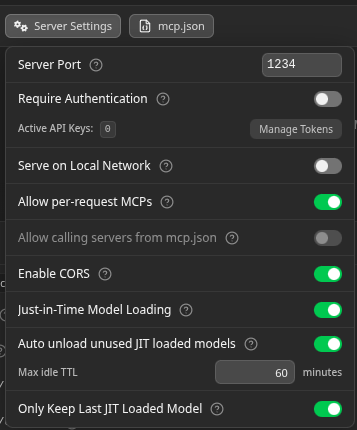
- Click the Developer / Local Server Icon (<->) in the left sidebar.
- At the top of the window, choose your downloaded model from the dropdown to load it into memory.
- Verify that the Port is set to
1234. - CRITICAL STEP: Toggle Enable CORS to ON. (Because SugarCube runs in a web browser, the browser will refuse to connect to your local server unless CORS is turned on).
- Click Start Server.
Step 4: Configure the Mod in the Game
- Open your patched game in your browser (
CourseOfTemptation.patched.htmlorShady Deals.patched.html). - Open the Settings modal (
⚙️) and navigate to the Prompt Generators tab. - Expand the OpenAI-Compatible API card.
- Set the API URL to
http://localhost:1234. - Click Test Connection. The mod will connect to LM Studio and auto-populate the model dropdown.
- Select your loaded model from the dropdown.
- Under Prompt Generator Selection at the bottom of the tab, select OpenAI-Compatible API.
- Click Save Settings.