External Tool Hand-off Generator Guide
The External Tool Hand-off generator is designed for players who want to generate their portraits using external AI generation software or cloud services—such as Midjourney, DALL-E 3, Fooocus, Stable Diffusion WebUI / Forge, ComfyUI, SeaArt, or any other image generator—while taking full advantage of the mod's dynamic, game-aware prompting engine.
Instead of calling an automated API or local background server, the mod prepares the prompt, displays an interactive Awaiting Card on the portrait slot, and lets you quickly copy the prompt, create the image externally, and paste or drop the result straight into the game.
It works seamlessly across both Course of Temptation and Shady Deals.
Advantages & Limitations
- Universal Tool Compatibility: Works with any image generation website, cloud tool, or local software (Midjourney, ChatGPT / DALL-E, Fooocus, Leonardo.ai, Photoshop, etc.).
- Zero Setup & Zero GPU Strain: No Python companion servers, no local graphics hardware requirements, and no API keys to configure.
- Maximum Creative Control: You can tweak prompts, choose custom checkpoints and LoRAs, inpaint, upscale, or generate multiple variations in your preferred tool before picking the best result.
- Fast & Safe Clipboard Paste (
Ctrl+V): Simply hover over the target slot and pressCtrl+Vto import your image instantly from the clipboard. - Never Cropped: The mod automatically contains images of any aspect ratio or resolution (square, tall portrait, wide landscape) without clipping edges or heads.
- Cached Locally: Once imported, portraits are saved to your browser's local database and load instantly on return visits.
- Semi-Manual Workflow: Requires switching between the game and your external AI generator.
- Not Hands-Free: Does not generate automatically in the background while you click through dialogue.
The In-Game Hand-off Card
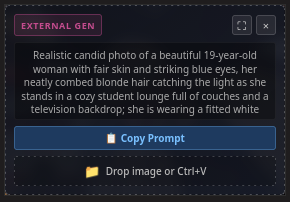
Whenever a portrait is requested (either automatically on passage entry or manually when clicking 🔄), the portrait slot displays the compact Hand-off Card:
Features & Controls
- Prompt Preview Box: Displays the complete, context-aware prompt crafted by your active Prompt Generator.
📋 Copy Prompt: Copies the entire prompt text to your system clipboard in a single click.📁 Drop image or Ctrl+V: A multi-mode intake dropzone:- Hover &
Ctrl+V: Move your cursor over the card and pressCtrl+Von your keyboard to paste an image directly from your clipboard (e.g. copied from Discord, a web browser, or your image viewer). - Drag & Drop: Drag an image file from your desktop or file manager directly onto the card.
- File Browser: Click the dropzone to open a standard file selection dialog.
- Hover &
⛶Expand Button: Opens the Full Details Modal (see below).×Cancel Button: Dismisses the awaiting card and marks the portrait as cancelled, providing a refresh button to regenerate whenever you are ready.
Full Details Modal
Clicking the expand icon (⛶) in the top-right corner of the card opens the Full Details Modal:
- Target & Recommended Dimensions: Shows the character ID and the mod's recommended resolution (e.g.
500x500square or512x768portrait). (Note: you are free to generate at any resolution—the mod will scale and contain the image cleanly without cropping). - Positive & Negative Prompts: Provides dedicated viewing boxes and one-click copy buttons for both positive and negative prompts.
- Image Preview: Displays a full thumbnail preview of your selected or pasted image before applying it.
- Lock Portrait Checkbox: Check "Lock portrait to this image (prevent updates when outfits/scenes change)" if you want to keep this portrait permanently fixed for the character.
- Apply Button: Saves the image to the game's cache and applies it immediately to the character portrait.
How Hover-Based Ctrl+V Pasting Works
When you are playing with multiple portraits on screen (for example, in a scene with multiple NPCs or when the Player Character and an event illustration are both awaiting artwork), the mod uses hover-targeted paste:
- Hover Target: Simply hover your mouse cursor over the slot you wish to fill, and press
Ctrl+V. - Visual Highlight: The hovered card illuminates with a distinct glowing border to confirm it is the active target.
- Safety First: If your mouse cursor is not hovering over any awaiting card and the modal is not open,
Ctrl+Vkeystrokes are completely ignored, preventing accidental uploads.
Step-by-Step Setup Guide
Step 1: Select External Tool Hand-off as Your Image Generator
- Open your patched game in your browser (
CourseOfTemptation.patched.htmlorShady Deals.patched.html). - Open the Settings modal (
⚙️) and navigate to the Image Generators tab (or launch the Initial Setup Wizard from General Settings). - Expand the External Tool Hand-off card.
- Set Active Image Generator to External Tool Hand-off.
- Click Save Settings.
Step 2: Generating and Importing Portraits
- In the game, encounter a character or click the refresh button (
🔄) on a portrait slot. - Click
📋 Copy Prompton the awaiting card. - Switch to your external generator (e.g. Midjourney in Discord, Fooocus, DALL-E, or WebUI) and paste the prompt.
- Once the image finishes generating, either:
- Right-click the image and select Copy Image, return to the game, hover over the slot, and press
Ctrl+V. - Or save the image to your computer, and drag-and-drop it onto the card.
- Right-click the image and select Copy Image, return to the game, hover over the slot, and press
- The card disappears instantly, revealing your custom AI portrait in the game!