ComfyUI Image Generator Guide
ComfyUI is a modular, node-based graphical user interface for Stable Diffusion. It allows advanced users to design custom generation workflows by linking models, loaders, samplers, face detailers, and upscalers.
The AI Portrait Mod connects directly to ComfyUI, dynamically reading your active workflow and sending portrait generation requests to it in real-time for both Course of Temptation and Shady Deals.
Recommended for Advanced Users
ComfyUI is exceptionally powerful, but setting up custom workflows requires familiarity with diffusion nodes. If you are new to AI generation, we strongly recommend starting with Perchance AI or Local SD WebUI Forge first.
Advantages & Limitations
- Ultimate Control: Build complex multi-stage pipelines (e.g. face detailing, LoRA stacking, custom upscaling).
- Highly VRAM Efficient: Uses less VRAM than standard WebUIs for complex modern architectures like SDXL or Flux.
- 100% Free & Offline: Runs entirely on your local GPU with zero ongoing costs.
- On-the-Fly Preset Switching: Switch between different saved workflows directly from the game's sidebar.
- Steep Learning Curve: Requires understanding node configurations.
- Workflow Prerequisites: The workflow must contain standard Text Encode and Save Image nodes for the mod to map inputs and outputs.
- Workflow-Managed Seeds: Seeds are configured within the workflow graph (
KSamplernode) rather than injected via global mod settings. - Requires Dedicated GPU: Demands an NVIDIA GPU with at least 8GB to 16GB+ VRAM.
Step-by-Step Setup Guide
Step 1: Enable CORS on ComfyUI (Mandatory!)
Because SugarCube games run inside a web browser, the browser will block requests to ComfyUI unless CORS is explicitly enabled on startup:
Right-click your ComfyUI startup batch file (e.g. run_nvidia_gpu.bat), select Edit, and append --enable-cors-header to the command line:
In Stability Matrix, open the package settings for ComfyUI and add --enable-cors-header under Extra Launch Arguments.
Start ComfyUI and verify that the interface loads in your browser at http://127.0.0.1:8188.
Step 2: Run a Successful Generation in ComfyUI
- Open ComfyUI in your browser (
http://127.0.0.1:8188). - Load the workflow you want to use with the mod.
- Click Queue Prompt and make sure at least one image generates successfully.
Why This Step Is Required
The mod imports your workflow directly from ComfyUI's /history endpoint. ComfyUI must have generated at least one image so the mod can inspect and import the workflow structure.
Step 3: Import and Save the Workflow in the Game
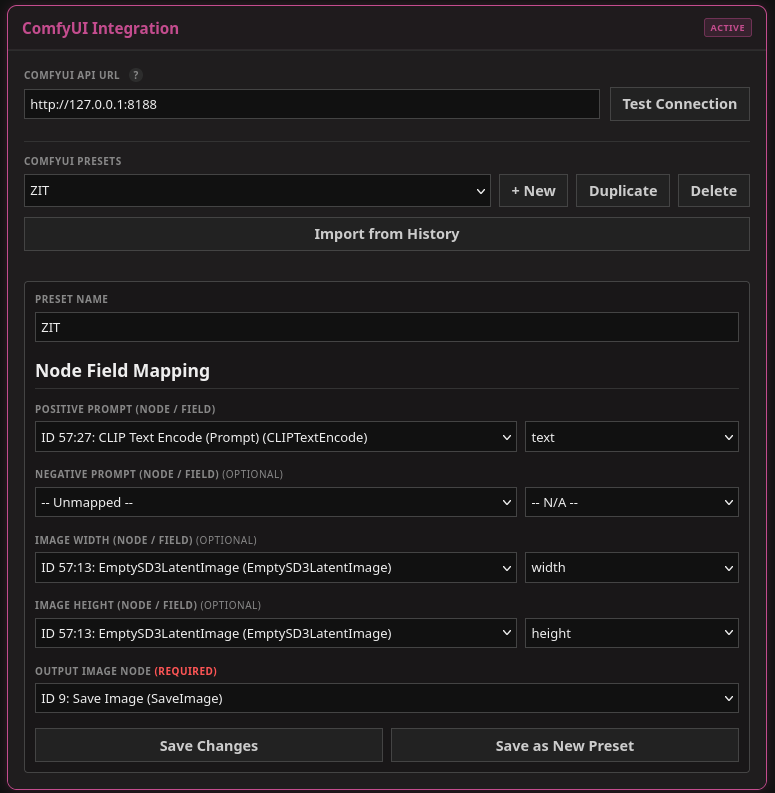
- Launch your patched game in your browser (
CourseOfTemptation.patched.htmlorShady Deals.patched.html). - Open the Settings modal (
⚙️) and navigate to the Image Generators tab. - Expand the ComfyUI Integration card.
- Set the ComfyUI API URL (default:
http://127.0.0.1:8188) and click Test Connection (turns green when reached). - Click Import from History. The mod will import your latest successful workflow.
- Verify node mappings:
- Positive Prompt Node: Text encode node receiving the main prompt.
- Negative Prompt Node: Text encode node receiving negative keywords.
- Save Image Node: Node that outputs the finished portrait image.
- Enter a name in Preset Name (e.g.
Anime PortraitsorRealistic XL) and click Save/Update Preset. - Ensure your preset is selected in the preset dropdown, and click Save Settings.
Quick Presets Access in the Game Window
If you create more than one preset (for instance, one preset optimized for character portraits and another for scenic passage events):
- In the ComfyUI settings card, check the box labeled "Quick presets access in the game window".
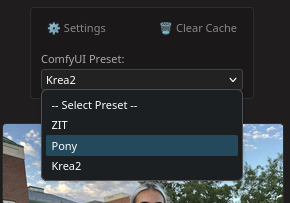
- A replica preset dropdown will appear directly on the main game sidebar (underneath the Settings and Clear Cache buttons).
- You can now toggle between your different ComfyUI workflows on the fly during gameplay without opening the settings modal!
- Note: Switching presets does not erase your cached portraits; existing portraits remain intact, while newly generated or refreshed images immediately use the new preset.