OpenRouter Cloud Image Generator Guide
OpenRouter is a unified cloud API gateway that provides access to dozens of state-of-the-art AI models. By configuring OpenRouter as your image generator, you can generate portraits using heavy, cutting-edge cloud models (such as Black Forest Labs' Flux.1) without needing any local graphics hardware.
It works identically across both Course of Temptation and Shady Deals.
Advantages & Limitations
- Bleeding-Edge Cloud Models: Access heavy models like Flux.1 Klein or Dev that are otherwise very difficult to run locally.
- Zero Local GPU Strain: All image rendering happens on remote servers.
- Unified Account: If you use OpenRouter for LLM prompt generation, you can use the exact same account, balance, and API key for both text and images!
- Pay-Per-Image: Each generated portrait costs a fraction of a cent or a few cents from your balance.
- Safety & Moderation: Because models are hosted by commercial cloud providers, some models enforce strict content moderation filters.
- No Seed Control: The OpenRouter
/api/v1/imagesendpoint does not support seed parameters (setting a frozen image seed has no effect). - Requires Internet: Cannot run offline.
Pricing & Suggested Models
OpenRouter uses a transparent pay-per-generation billing system. You deposit credits (minimum $5) into your OpenRouter account, which are deducted per generation:
| Model ID | Cost per Image (Est.) | Description |
|---|---|---|
black-forest-labs/flux.2-klein-4b |
~$0.014 / image | Fast, high-resolution, modern photorealism and anatomy. Highly recommended. |
Step-by-Step Setup Guide
Step 1: Create an OpenRouter Account & API Key
- Go to the OpenRouter Website and create an account.
- Go to your account dashboard and deposit a few dollars of credit (e.g. $5).
- Navigate to Keys in your dashboard settings.
- Click Create Key, give it a name (e.g.
Portrait Mod Image), and copy the key (starts withsk-or-v1-).
Step 2: Configure the Mod in the Game
- Open your patched game in your browser (
CourseOfTemptation.patched.htmlorShady Deals.patched.html). - Open the Settings modal (
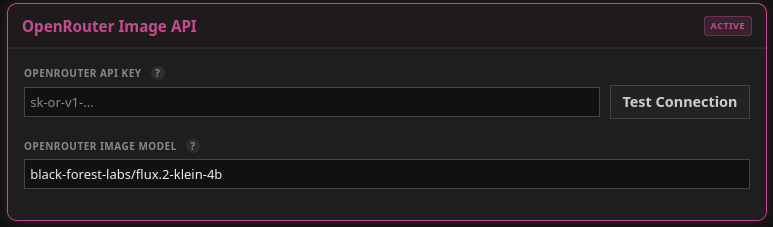
⚙️) and go to the Image Generators tab. - Expand the OpenRouter Image API card.
- Paste your API key into the OpenRouter API Key field. (Note: entering this key will automatically synchronize with your OpenRouter LLM prompt settings as well).
- In OpenRouter Image Model, select or enter
black-forest-labs/flux.2-klein-4b. - Click Test Connection to verify your account balance and key validity.
- Set Active Image Generator to OpenRouter Image API at the bottom of the tab.
- Click Save Settings.