Perchance AI Image Generator Guide
The Perchance AI image provider lets you generate character portraits and scene illustrations using Perchance's free online text-to-image generation service.
It is completely free, requires no subscription or API key, and provides unlimited image generations without needing a dedicated high-end gaming GPU. It works seamlessly with both Course of Temptation and Shady Deals.
How It Works
Because Perchance has an efficient anti-bot system, you'll have to start a small program (a webserver, provided with the mod), and open two browser tabs. All this setup will allow you to generate images for free, without limits, and without using any API key.
graph LR
    A["🎮 Game<br/>(CoT / Shady Deals)"] -->|"POST /generate"| B["🖥️ Local Server<br/>http://127.0.0.1:7865"]
    B <-->|"Relay / Long-Poll"| C["🌐 Browser Bridge<br/>(Dashboard / Worker Tab)"]
    C <-->|"Cloudflare Turnstile Verification"| D["☁️ Perchance AI Generator<br/>perchance.org"]
    C -->|"Portrait Data URL"| B
B -->|"Base64 Image"| A- The game requests portraits from the local companion server (
http://127.0.0.1:7865/generate). - The companion server coordinates with an open Perchance tab in your browser via the Bridge Dashboard (
http://127.0.0.1:7865/bridge). - Your browser completes the anti-bot verification seamlessly and securely relays the generated portrait back to the game.
Prerequisites
Python 3: Ensure Python 3 (version 3.8 or higher) is installed on your computer.
Download Python from python.org.
Important Installation Step
When the Python installer opens, make sure to check the box labeled "Add Python to PATH" before clicking Install.
Step 1: Start the Companion Server & Connect the Bridge
- Launch the companion server:
-
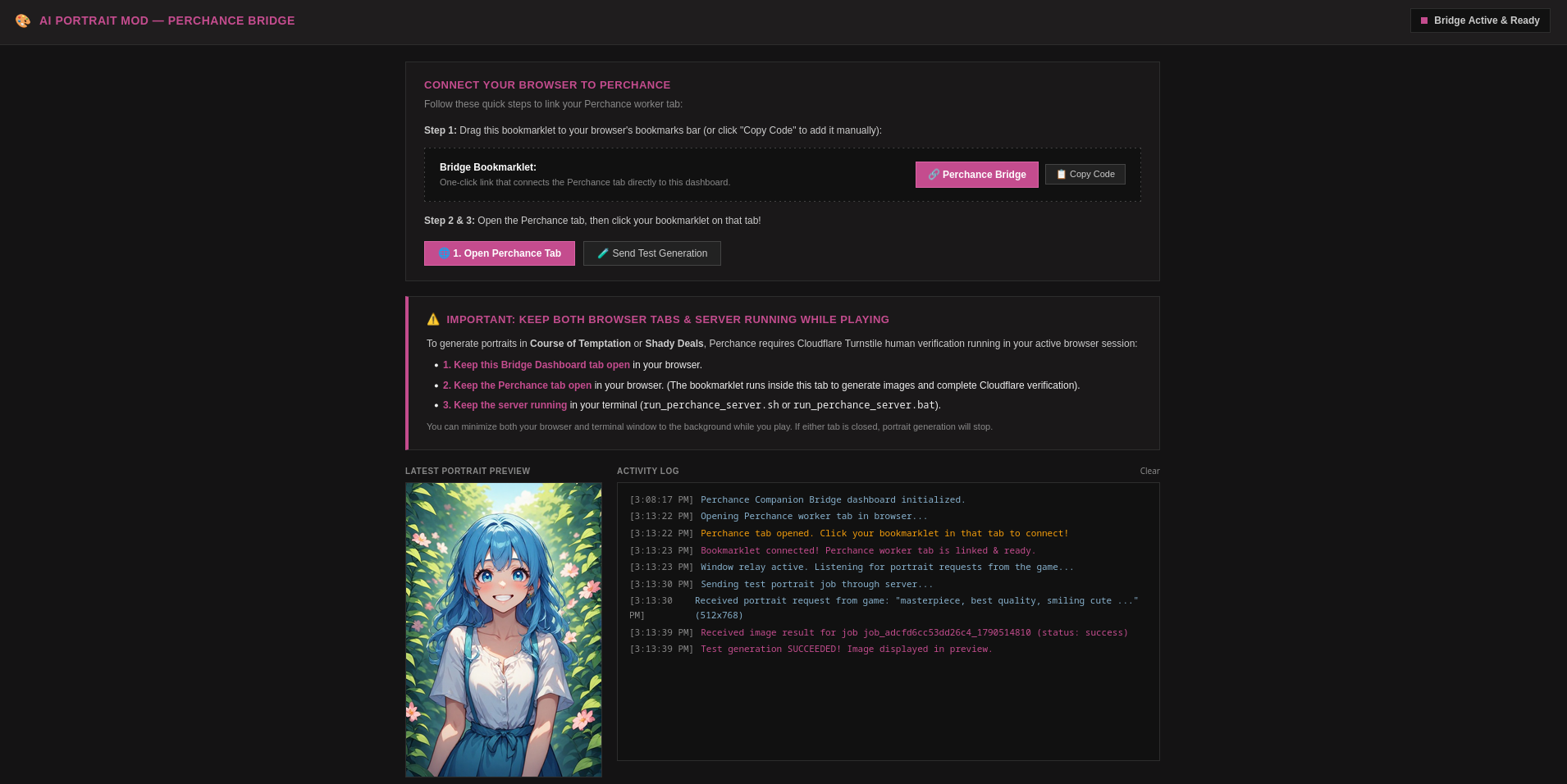
The server will launch and automatically open the Perchance Bridge Dashboard in your default web browser at
http://127.0.0.1:7865/bridge. -
Connect your Perchance worker tab:
- Drag the 🔗 Perchance Bridge bookmarklet button to your browser's bookmarks bar (or click 📋 Copy Code).
- Click 🌐 1. Open Perchance Tab on the dashboard.
- On the newly opened Perchance tab, click the bookmarklet you saved.
- You will see a small badge in the bottom-right corner saying
● CoT Portrait Bridge: Linked!. - The dashboard status indicator turns green: Bridge Active & Ready.
Keep Both Browser Tabs & Terminal Open While Playing
- Keep the Bridge Dashboard tab open.
- Keep the Perchance tab open. (The bookmarklet runs inside this tab to generate images and complete Cloudflare verification).
- Keep the terminal running the server script. You can minimize both your browser and terminal window to the background while you play. If either tab is closed, image generation will stop.
Step 2: Configure the Mod in the Game
- Launch your patched game in your browser:
- For Course of Temptation:
CourseOfTemptation.patched.html - For Shady Deals:
Shady Deals.patched.html - Open the Settings Panel (click
⚙️in the navigation menu/sidebar) or launch the Setup Wizard. - In the Image Generators tab, select Perchance AI Generator.
- Configure the settings:
- Perchance Local Server URL:
http://127.0.0.1:7865(default). - Guidance Scale: Default is
7(range 1–30). Higher values adhere more strictly to the prompt. - Click Test Server to verify connectivity. You should see a green success notification:
🟢 Connected to Perchance Local Server at http://127.0.0.1:7865! - Click Save Settings.
Customizing the Port (Optional)
If port 7865 is already being used by another program on your computer, you can run the companion server on a custom port:
Then update the Perchance Local Server URL in the mod's Settings modal to match (e.g. http://127.0.0.1:8000).
Troubleshooting Perchance
"Perchance requires Cloudflare Turnstile verification" / HTTP 503
- Perchance deployed anti-bot verification that blocks headless scripts. Open
http://127.0.0.1:7865/bridgein your browser and link your Perchance tab using the Bookmarklet. - Once connected, portrait requests from the game will immediately succeed.
"Could not connect to Perchance server at http://127.0.0.1:7865"
- Make sure
run_perchance_server.bat(Windows) orrun_perchance_server.sh(Linux/Mac) is running in the background. - Check that your local antivirus or firewall is not blocking local loopback connections on port 7865.
"Generation timed out after 85s"
- Check your open Perchance tab. Occasionally, Cloudflare Turnstile may ask you to click a "Verify you are human" checkbox if your IP address is flagged. Once clicked, generation resumes normally.
- Ensure your internet connection is active and stable.
Security & Privacy Considerations
The companion bridge is engineered with strict local security and privacy principles:
- Loopback Only (
127.0.0.1): The server listens exclusively on127.0.0.1. It is never exposed or accessible from external networks or other devices on your LAN. - Strict Origin & Drive-By Protection: The companion server only accepts requests from local origins (
null/file://where the game runs,http://127.0.0.1, andhttp://localhost). Untrusted third-party websites visited while playing cannot send background requests to your server. - Hardened
postMessageBoundary: Cross-tab communication between the Bridge Dashboard and the Perchance worker strictly validatesevent.origin(only accepting messages fromhttps://perchance.organd your local dashboard origin). Wildcard message targets are disabled. - Memory & Queue Protection: Enforces strict payload size limits (1 MB for requests, 25 MB for image returns) and queue caps to prevent memory exhaustion.
- Isolation Headers: The Bridge Dashboard enforces defensive security headers including
Content-Security-Policy,X-Frame-Options: DENY, andX-Content-Type-Options: nosniffto prevent clickjacking and data leakage. - Zero Third-Party Dependencies: The companion server uses exclusively standard Python 3 libraries (
http.server,urllib,threading,json). - No Personal Data or Telemetry: No account creation, no cookies, no passwords, and zero analytics or outbound tracking pings.